> ## Documentation Index
> Fetch the complete documentation index at: https://docs.clariti.site/llms.txt
> Use this file to discover all available pages before exploring further.
> Share projects and designs with your team and manage organization settings.
# Sharing & Collaboration
## Organization Structure
Clariti uses an organization-based structure for collaboration. All team members belong to an organization (e.g., "CFS"), and sharing happens within this organizational context.
## Sharing Projects with Your Organization
To share a project with all members of your organization:
1. Navigate to the Projects list
2. Find the project you want to share
3. Click the Share icon (branching icon) next to the project
4. The project will now be visible to all organization members
Shared projects display a "Shared" label with a group icon, making it easy to identify collaborative work.
## Sharing Individual Designs
Designs can also be shared at the individual level:
1. Open the project containing the design
2. Find the design in the list
3. Click the Share icon next to the design name
4. The design will show "Shared" status instead of your name
## Understanding Sharing Status
In the designs list, the "Created by" column indicates sharing status:
* **"Shared" with group icon**: Visible to all organization members
* **User name with avatar**: Private to the creator (not shared with organization)
# Organisation Settings
## Managing Team Members
Organization administrators can add team members through Organization Settings:
1. Click on your organization name in the left sidebar (top)
2. Select Organization Settings
3. Navigate to the Members tab
4. Click Invite to add new team members by email
The Organization Settings panel includes:
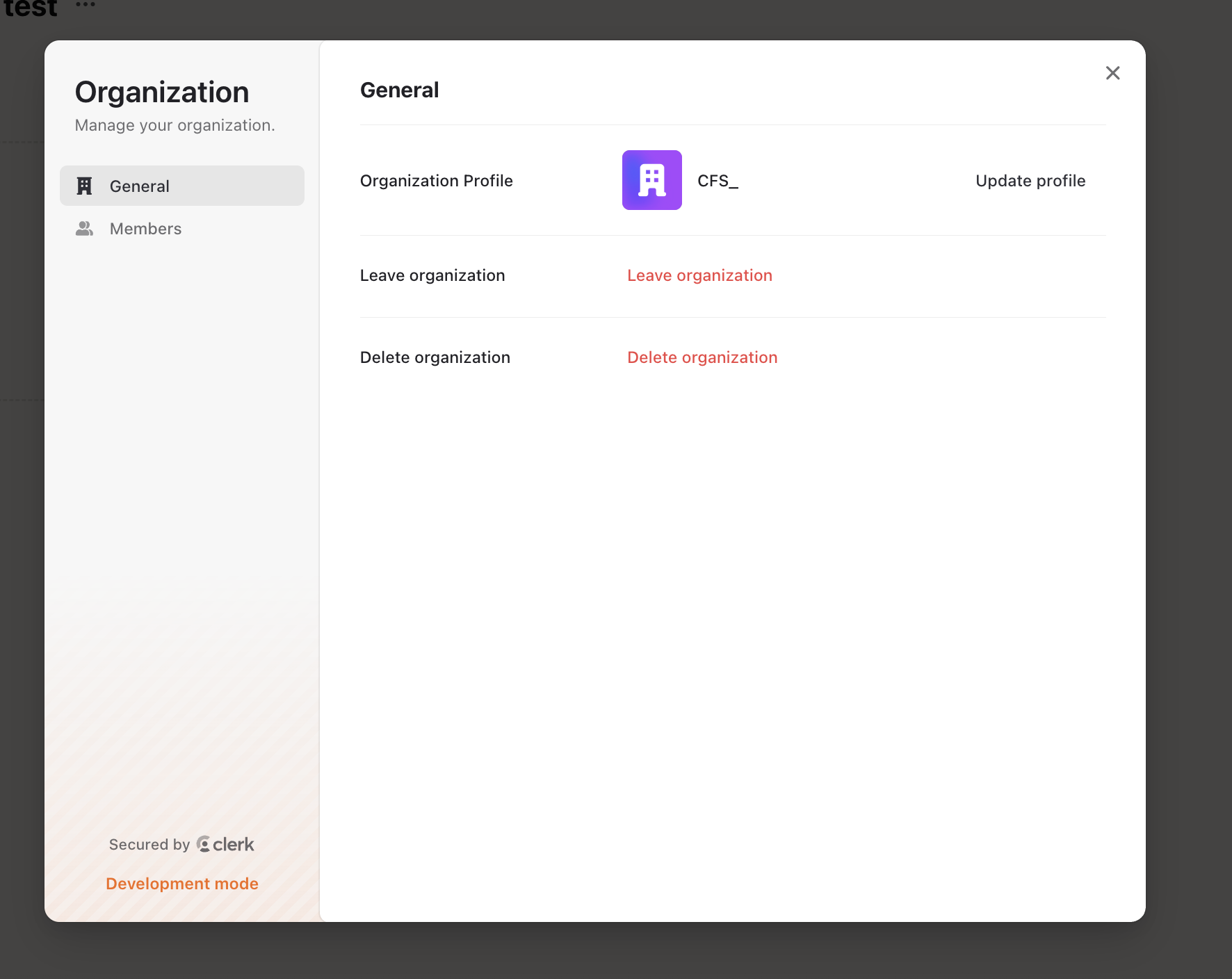
* **General**: Organization profile and name settings
* **Members**: View, invite, and manage team members
## Deleting Your Account
A user can delete there organisiton from by clicking on the delete organisation. This will delete the account for all members.
 ## Leaving Your Organisiton
A user can remove themself from organisiton from by clicking on the leave organisation. This will delete the account for user from the account.
# User Settings
## Profile Settings
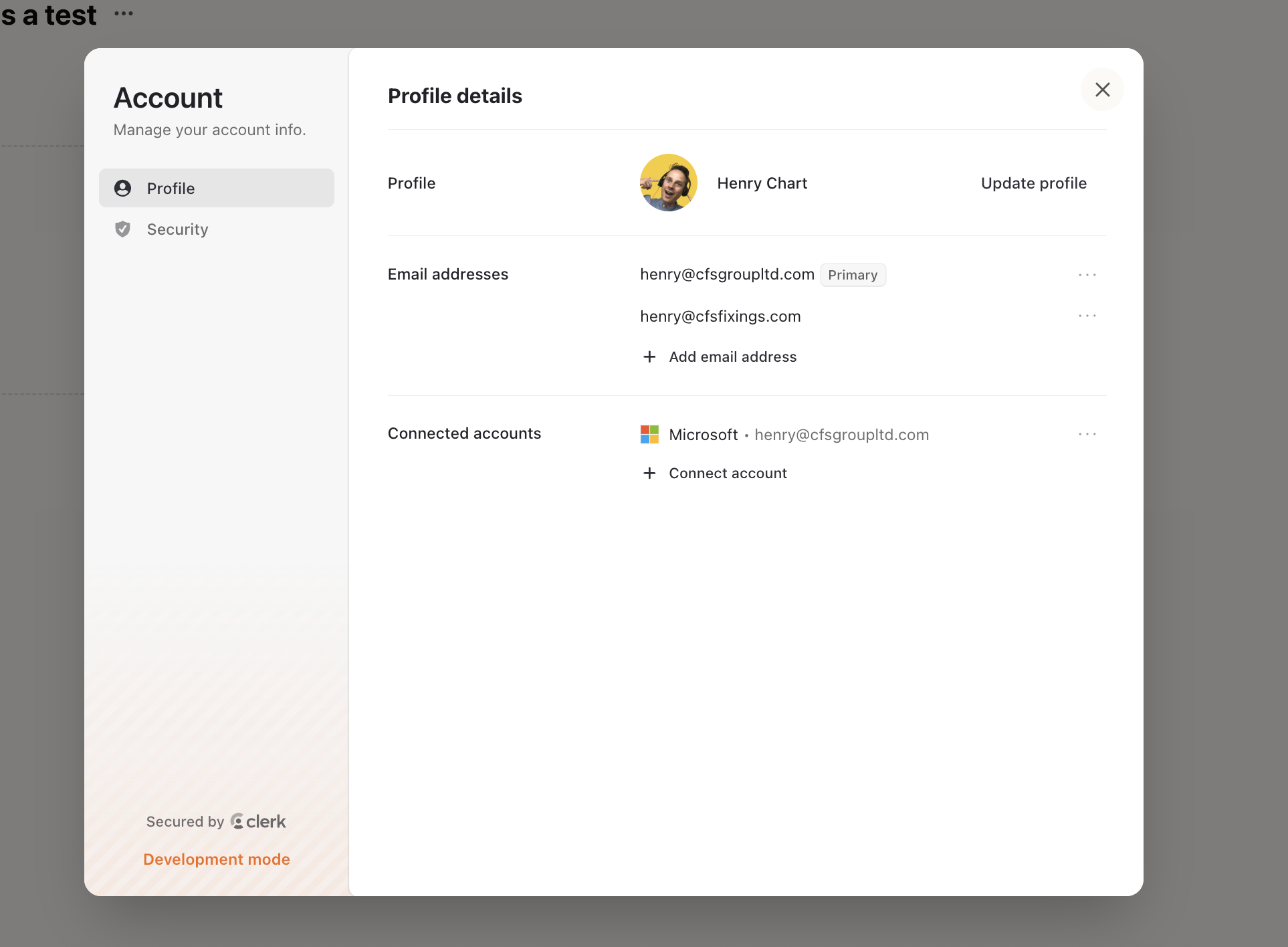
A user can change there email address and connected accounts to Clariti in the profile settings.
## Leaving Your Organisiton
A user can remove themself from organisiton from by clicking on the leave organisation. This will delete the account for user from the account.
# User Settings
## Profile Settings
A user can change there email address and connected accounts to Clariti in the profile settings.
 ## Changing Password and Deleting Account
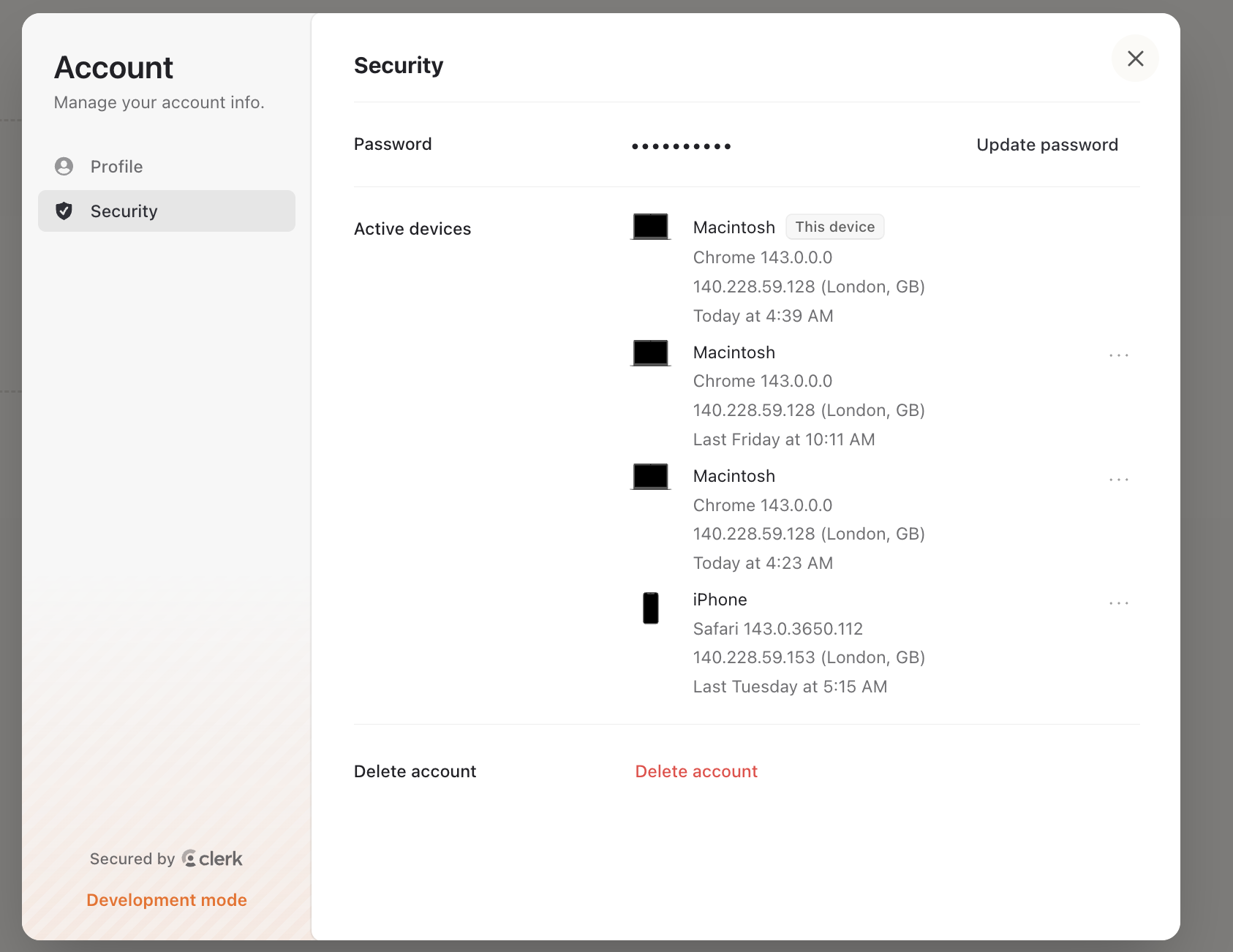
A user can change their password and delete their account in the security settings.
## Changing Password and Deleting Account
A user can change their password and delete their account in the security settings.