Organization Structure
Clariti uses an organization-based structure for collaboration. All team members belong to an organization (e.g., “CFS”), and sharing happens within this organizational context.Sharing Projects with Your Organization
To share a project with all members of your organization:- Navigate to the Projects list
- Find the project you want to share
- Click the Share icon (branching icon) next to the project
- The project will now be visible to all organization members
Sharing Individual Designs
Designs can also be shared at the individual level:- Open the project containing the design
- Find the design in the list
- Click the Share icon next to the design name
- The design will show “Shared” status instead of your name
Understanding Sharing Status
In the designs list, the “Created by” column indicates sharing status:- “Shared” with group icon: Visible to all organization members
- User name with avatar: Private to the creator (not shared with organization)
Organisation Settings
Managing Team Members
Organization administrators can add team members through Organization Settings:- Click on your organization name in the left sidebar (top)
- Select Organization Settings
- Navigate to the Members tab
- Click Invite to add new team members by email
- General: Organization profile and name settings
- Members: View, invite, and manage team members
Deleting Your Account
A user can delete there organisiton from by clicking on the delete organisation. This will delete the account for all members.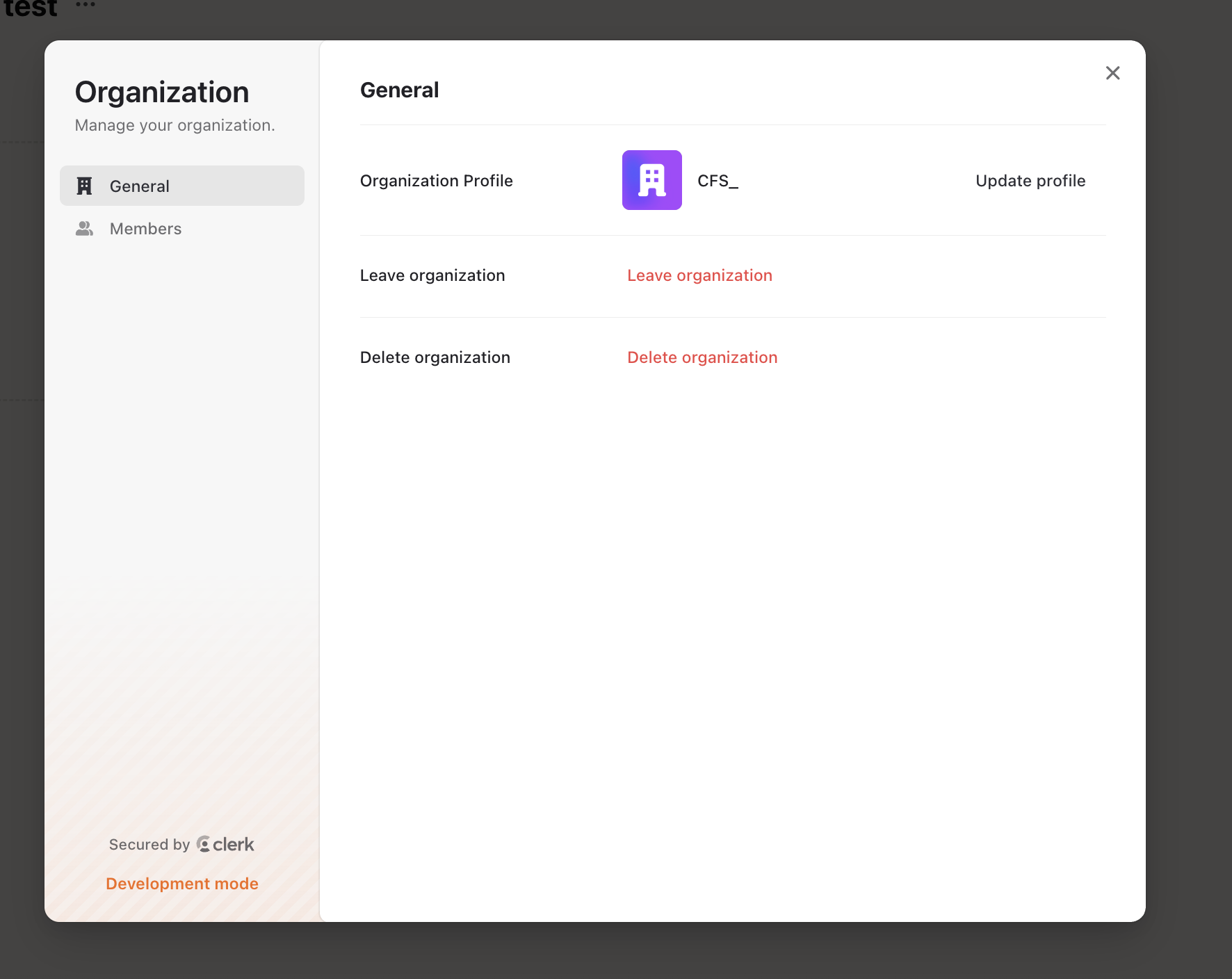
Leaving Your Organisiton
A user can remove themself from organisiton from by clicking on the leave organisation. This will delete the account for user from the account.User Settings
Profile Settings
A user can change there email address and connected accounts to Clariti in the profile settings.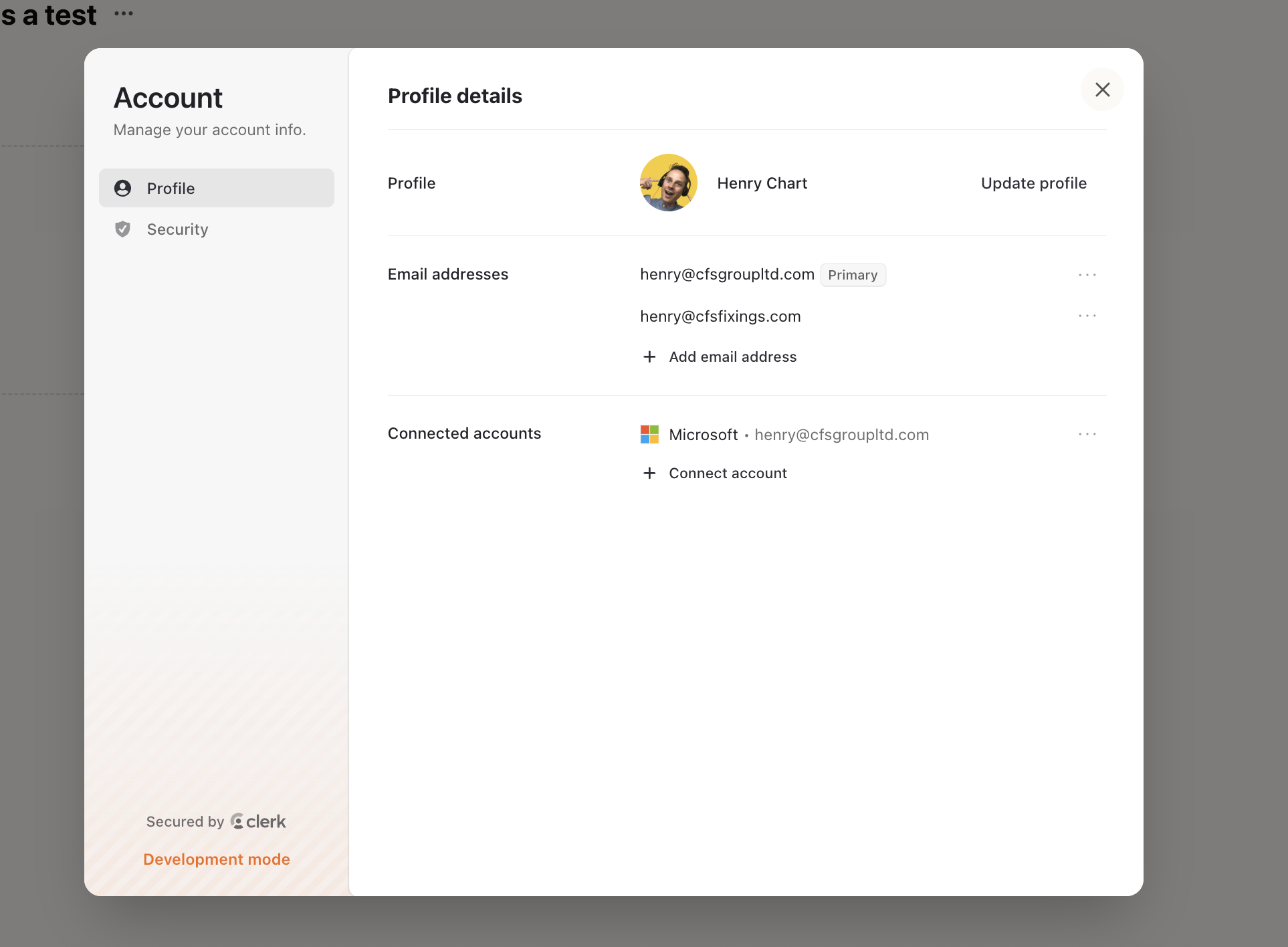
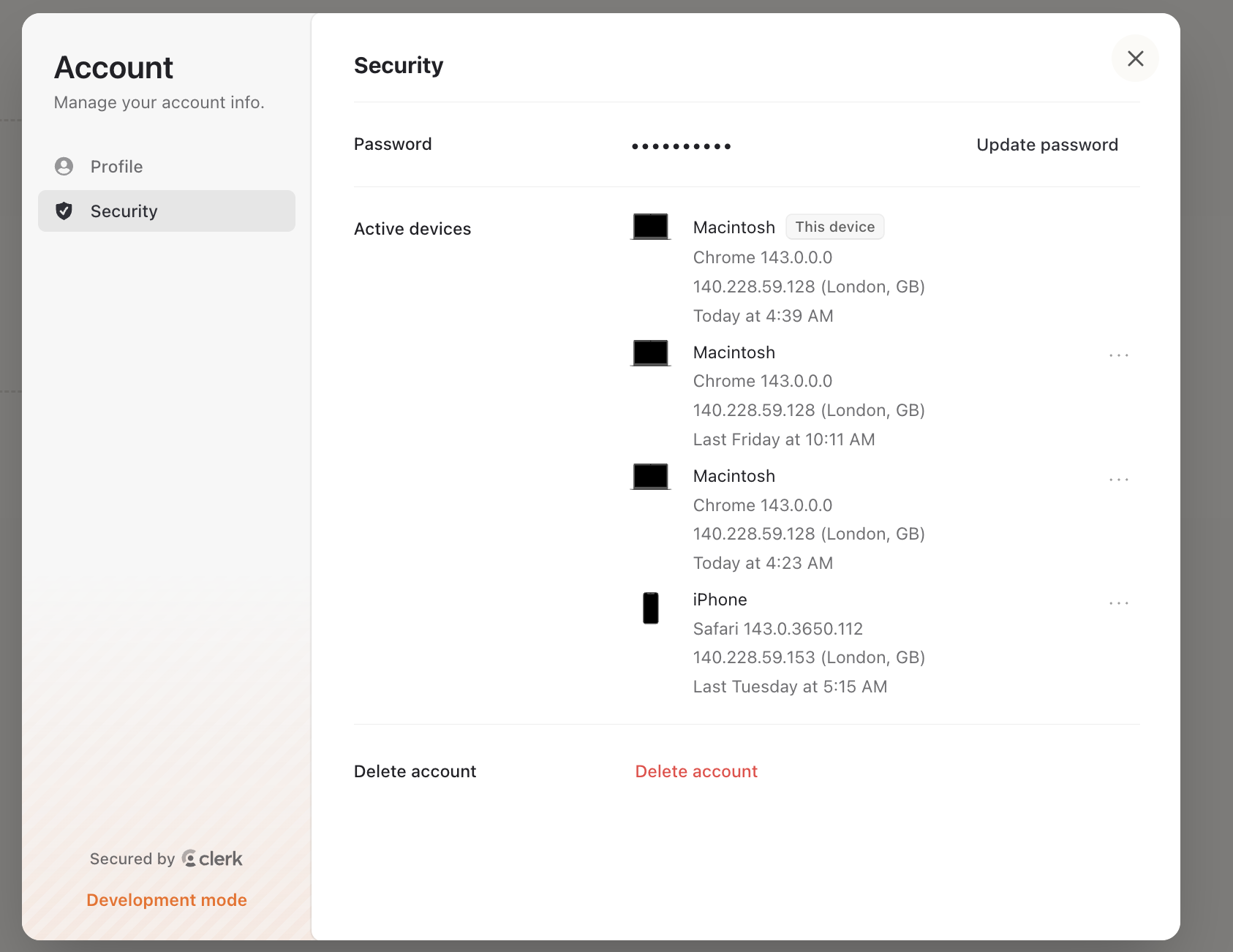
Changing Password and Deleting Account
A user can change their password and delete their account in the security settings.